Learn how to set up Claude AI email management with Google Business Light Gmail. Follow our step-by-step guide for seamless AI email automation and integration.

It’s a shift from being a 'processor' to being a 'director.' You’re no longer the one doing the manual labor of sorting and drafting—you’re the one making the final call on what gets sent and what matters.
샌프란시스코에서 컬럼비아 대학교 동문들이 만들었습니다
"Instead of endless scrolling, I just hit play on BeFreed. It saves me so much time."
"I never knew where to start with nonfiction—BeFreed’s book lists turned into podcasts gave me a clear path."
"Perfect balance between learning and entertainment. Finished ‘Thinking, Fast and Slow’ on my commute this week."
"Crazy how much I learned while walking the dog. BeFreed = small habits → big gains."
"Reading used to feel like a chore. Now it’s just part of my lifestyle."
"Feels effortless compared to reading. I’ve finished 6 books this month already."
"BeFreed turned my guilty doomscrolling into something that feels productive and inspiring."
"BeFreed turned my commute into learning time. 20-min podcasts are perfect for finishing books I never had time for."
"BeFreed replaced my podcast queue. Imagine Spotify for books — that’s it. 🙌"
"It is great for me to learn something from the book without reading it."
"The themed book list podcasts help me connect ideas across authors—like a guided audio journey."
"Makes me feel smarter every time before going to work"
샌프란시스코에서 컬럼비아 대학교 동문들이 만들었습니다

Lena: Miles, I was looking at my inbox this morning and realized I spent nearly three hours just triaging client inquiries and vendor follow-ups. It’s like a second job!
Miles: You’re not alone, Lena. Most small business owners lose two to three hours a day just staying afloat in their email. But here’s the wild part: with the new Claude and Google Workspace integration that launched just a couple of months ago, you can actually get that time back. We’re talking about turning a 45-minute writing session into a 10-minute review.
Lena: That sounds like a dream, but I’ve always been wary of AI just "hallucinating" replies to my clients.
Miles: Exactly, and that’s the biggest misconception. Claude acts as a drafting assistant, not an auto-responder. It sits in your drafts folder until you hit send. So, let’s break down the step-by-step setup to get your Gmail and Claude working together.
Lena: So, before we get our hands dirty with the settings, we need to talk about who actually gets to play with these toys. I saw something about this being a paid-only feature?
Miles: That’s a crucial point. As of April 2026, the Google Workspace connector is reserved for paid tiers. If you’re on the free plan, you won’t see these options. You need to be on Claude Pro, the Max plan—which is great for that deep Research mode—or part of a Team or Enterprise account.
Lena: Okay, so Pro and up. And I heard there’s a geographic thing too? Like, it’s not everywhere yet?
Miles: Right again. It’s currently in beta for users in the United States, Japan, and Brazil. If you’re outside those areas, you might have to wait a bit longer for the broader rollout. But for those who are eligible, the setup is surprisingly fast—we’re talking maybe ninety seconds if you’ve already got your Google credentials handy.
Lena: Ninety seconds? That’s faster than I can brew a cup of coffee. But I have to ask about the "Business Light" aspect. A lot of our listeners use Google Business accounts for that professional touch. Does that change the setup?
Miles: Not really! Whether you’re using a personal Gmail or a Google Workspace Business account, the process is identical. The only hurdle might be if your company has strict IT policies. If you’re the admin, you’re golden—otherwise, you might need a quick "okay" from your IT department to allow third-party integrations.
Lena: That makes sense. It’s essentially just giving Claude permission to "talk" to Google’s servers, right?
Miles: Exactly. It uses OAuth—which is that secure "Sign in with Google" window we’ve all seen a thousand times. You aren’t giving Claude your password—you’re giving it a specific, revocable key to access your data.
Lena: Alright, walk me through it. I’m sitting at my computer, I’ve got Claude open—where do I click first?
Miles: Start by clicking your profile avatar in the top-right corner. From there, hit "Settings." You’ll see a sidebar, and you’re looking for a section called "Connectors" or "Integrations." Once you’re in there, the Google Workspace icon should be staring right at you.
Lena: I see it. I click "Connect," and then it’s just a matter of following the prompts?
Miles: Precisely. It’ll redirect you to Google’s login page. This is where you choose the specific account you want to link. Once you sign in, Google is going to show you a list of permissions Claude is requesting. It’ll ask for read-only access to Gmail, permission to view your Calendar, and access to your Drive and Docs.
Lena: Read-only access for Gmail? That makes me feel a lot better. So it can’t accidentally send a half-baked reply to my biggest client while I’m sleeping?
Miles: Not through the standard connector, no. It can read your threads and compose drafts for you, but it doesn't have the "send" button authority unless you’re using more advanced developer tools like MCP servers. For most people, having it stay in the "Drafts" folder is the perfect safety net.
Lena: And once I hit "Allow," that’s it? I’m connected?
Miles: That’s it. You’ll be bounced back to Claude, and you should see a "Connected" status. From that moment on, Claude isn’t just a chatbot—it’s an assistant that actually knows what’s going on in your business. It’s like giving your intern the keys to the filing cabinet so they can actually be helpful.
Lena: Okay, so I’m connected. Now I want to see some magic. What’s the first thing I should ask it to do to prove this was worth the twenty bucks a month?
Miles: The absolute "win" is the morning briefing. Instead of scrolling through fifty emails while you’re still half-asleep, you just tell Claude: "Check my inbox for any unread emails since yesterday at 6 PM. Categorize them into things that need a response today, things that are just for my information, and things that can wait."
Lena: Oh, I love that. It’s like having someone pre-read your mail and highlight the bills and the birthday cards.
Miles: It goes even deeper. You can ask it to suggest a one-sentence reply for everything in the "needs response" category. It identifies the sender’s intent—like if a vendor is asking for a price quote—and it looks at your history to draft something that actually sounds like you.
Lena: But how does it know my tone? Does it just sound like a robot?
Miles: Not if you use the "Custom Style" feature. You can actually paste a few of your previous emails into Claude and say, "This is how I write—mirror this voice." It’ll pick up on whether you’re a "Best regards" person or a "Cheers" person. It’ll even avoid those stiff, formal phrases that scream "AI-generated."
Lena: That’s fascinating. So it’s not just summarizing—it’s actually preparing the work for me.
Miles: Exactly. One user reported that this single workflow cut their daily email processing from forty-five minutes down to just twelve. Over a month, that’s an entire workday you’ve basically clawed back from the "email abyss." It’s about being query efficient. Using specific timeframes like "emails from John after December 1st" rather than just "show me John’s emails" makes the results much more accurate.
Lena: I’m curious about the "Research mode" you mentioned earlier. How does that play into my email? I usually think of research as searching the web, not my inbox.
Miles: That’s where it gets really powerful for Business Light users. If you’re on the Claude Max plan, Research mode can spend up to forty-five minutes doing an autonomous investigation. It can look at your internal emails and Docs, then cross-reference that with public web data.
Lena: Wait, give me a real-world example of that.
Miles: Say you’re preparing a proposal for a new client. You can ask Claude to look at your entire email history with them to find their pain points, then go out to the web to see what their competitors are doing, and finally look at your internal sales data in Google Docs to see what pricing worked for similar projects in the past.
Lena: Wow. It’s connecting the "inside" of my business with the "outside" world.
Miles: Precisely. It can run ten to thirty targeted searches across your Drive and the live web simultaneously. It fills in the gaps. If you’re missing a piece of info from a vendor, it’ll flag it. It’s not just "reading" your email—it’s analyzing the context of your entire business operation.
Lena: And for a small business owner who’s wearing ten different hats, having that kind of bird’s-eye view is a massive competitive advantage.
Miles: It really is. And for those who handle high volumes—like a support inbox—you can even use it to flag specific words. You can tell Claude, "Find any emails from the last week that mention a 'problem' or a 'refund' and rank them by urgency." It turns a chaotic list of messages into an organized hit-list of tasks.
Lena: Now, I’ve heard some people talk about using Zapier or Make.com for this too. How does that differ from the direct integration we just talked about?
Miles: Think of the direct integration as your personal assistant you talk to. Tools like Zapier or Make.com are more like building a "factory" for your emails. They’re for when you want things to happen automatically without you even asking.
Lena: So, like, every time a new lead comes in, it automatically creates a draft?
Miles: Exactly. With Zapier, you can set up a "Zap" where the trigger is a "New Email in Gmail" and the action is "Send Message in Claude." You can even filter it so it only triggers for specific labels, like "New Inquiry." Claude writes the reply based on a prompt you’ve pre-written—like a "warm, helpful brand voice"—and then Zapier puts that reply right back into the Gmail thread as a draft.
Lena: That sounds a bit more technical to set up. Is it worth the effort?
Miles: For high-volume businesses, absolutely. Zapier’s "Create Draft Reply" action is unique because it keeps the conversation in the same thread. It’s about five minutes to set up, and the cost is pennies per email. On the other hand, Make.com is great if you want to get really fancy—like using AI to classify the "intent" of an email.
Lena: Intent? Like, whether they’re happy or mad?
Miles: More like whether it’s a sales lead, a support ticket, or just spam. You can build a "triage pipeline" that reads the email, decides who on your team needs to see it, routes it to the right folder, and sends an automatic acknowledgement—all in one go.
Lena: It’s interesting to see the different levels of this. You can start with the simple built-in connector, and then move to these "automation factories" as your business grows.
Miles: Right. It’s a progression. Start simple with summaries, move to drafting, and eventually, you’re building these multi-step workflows that handle the "messy middle" of your data and communication.
Lena: We’ve covered a lot of ground here, Miles. If someone is listening to this and feeling a little overwhelmed, what are the three most important things they should do today to get started?
Miles: First, verify your plan. Make sure you’re on Claude Pro or higher. Then, go through that ninety-second setup in the settings menu. Once you’re connected, start with a "low-stakes" win. Ask Claude to summarize your unread emails from the last twenty-four hours. Don’t try to automate your whole life on day one.
Lena: Just get used to the feeling of the AI "knowing" your context.
Miles: Exactly. The second move is to focus on "Drafting, not Sending." Use Claude to write the replies, but always—and I mean always—do a quick human review before hitting send. Claude is brilliant, but it doesn't know the "unspoken" things about your business relationships.
Lena: Good point. And what’s the third?
Miles: Be specific with your prompts. Use the "Who, What, How" framework. Tell Claude who the recipient is, what the goal of the email is, and what the tone should be—like "professional but brief." The more guardrails you give it, the less likely it is to wander off-track.
Lena: And I suppose we should mention the pitfalls too. I noticed in the guides that the "OAuth" step can be tricky for some.
Miles: Yeah, if you’re using the more technical MCP servers for the desktop app, the biggest mistake people make is choosing "Web Application" instead of "Desktop App" in the Google Cloud Console. It sounds like a small detail, but it’ll break the whole connection. If you stick to the standard Claude.ai integration we talked about first, you won’t have that problem.
Lena: Keep it simple first. I like that. It’s about reducing friction, not adding more technical debt to your plate.
Miles: Precisely. And remember, Claude doesn't "scan" your inbox in the background. It only looks at your emails when you’re actively asking it to in a chat. Your data isn’t used to train the models on these paid plans, and you can pull the plug and disconnect the whole thing at any time if you change your mind.
Lena: You know, Miles, what strikes me about all of this is how it changes our relationship with our tools. We’ve spent decades "serving" our inboxes—reacting to every ping, scrolling through endless threads.
Miles: It’s a shift from being a "processor" to being a "director." You’re no longer the one doing the manual labor of sorting and drafting—you’re the one making the final call on what gets sent and what matters. It frees up your brain for the actual work that grows your business.
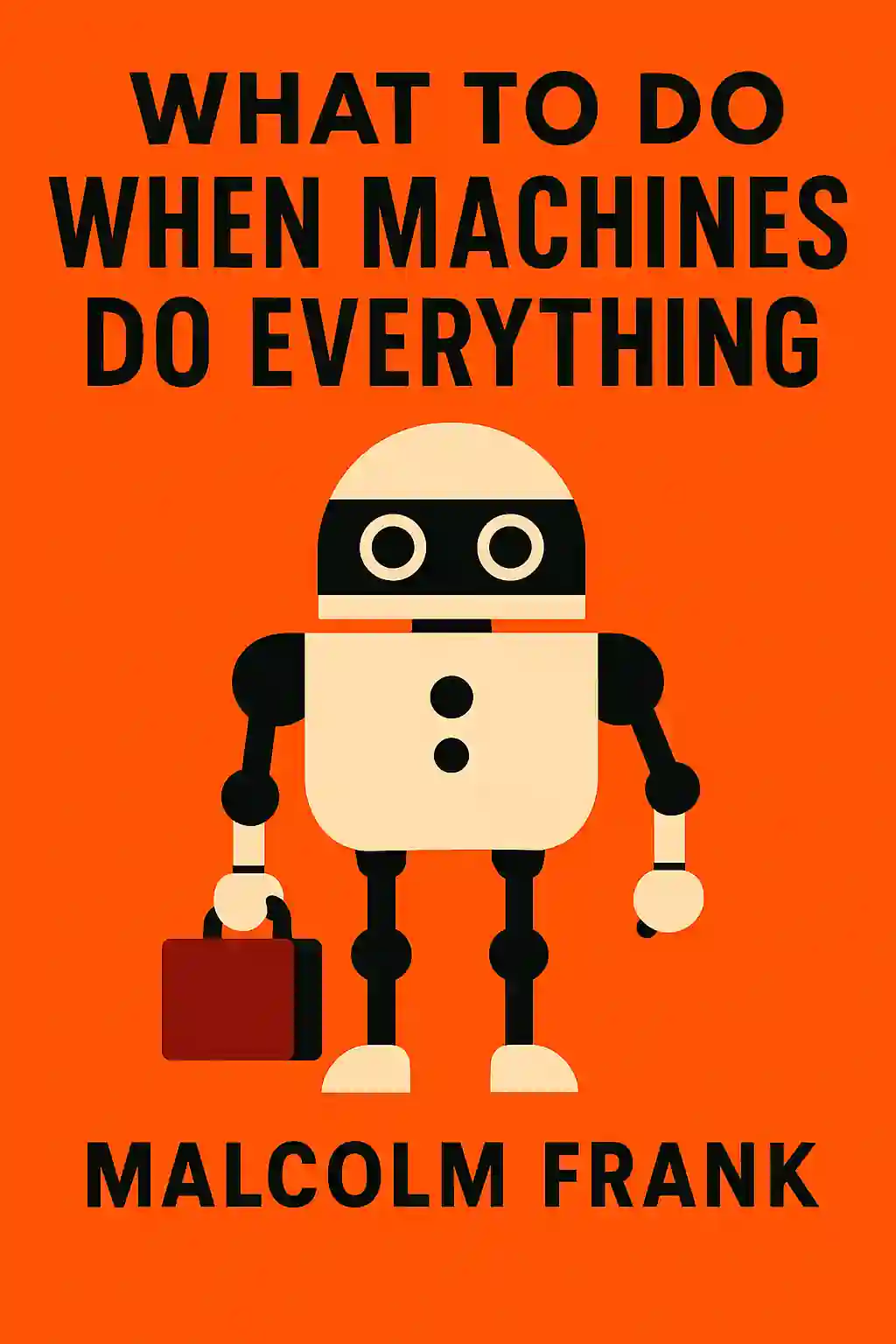
Lena: It’s like what Malcolm Frank talks about in his books—when machines do the "everything," we get to focus on the things that are uniquely human. Empathy, strategy, and complex decision-making.
Miles: I couldn’t agree more. Using Claude for email management isn’t about being lazy; it’s about being efficient so you can show up better for your clients and your team. Whether you’re using the standard Google Workspace integration for those quick morning briefings or setting up complex Zapier workflows to handle leads, the goal is the same: reclaiming your time.
Lena: So to everyone listening, I’d encourage you to try just one thing today. Connect your account and ask Claude to summarize one long email thread that’s been sitting in your inbox. Just see how it feels to have that clarity in seconds instead of minutes.
Miles: It’s a small step, but it’s often the one that breaks the "productivity dam" and changes how you work forever.
Lena: Absolutely. Thank you for walking us through this, Miles. It’s been incredibly practical.
Miles: My pleasure, Lena. It’s always fun to see these tools actually make life easier.
Lena: And thanks to all of you for joining us. We hope you feel a little more empowered to take control of your digital workspace. Think about which part of your email routine feels the most like a "second job" and see if Claude can take it off your hands. We’ll be thinking about how these integrations keep evolving, but for now, the tools are there—it’s just a matter of putting them to work. Take care, everyone.